ShoppingateShoppingateDevelopers
shoppinggate.app ↗
Documentation
  • What is a Mini App
  • Why Mini Apps
  • API integration
  • SDK
  • Webview
  • Mini App architecture
  • Getting started
  • Choosing your path
  • Introduction
    • Introduction
    • Sign up & login
    • Dashboard & analytics
    • Mini-Programs
    • Submit & publish a version
    • App Binding
    • Privacy Settings
    • Allowed URL
    • Users & roles
    • Introduction
    • Become a Mini-App vendor
    • API keys
    • My Mini-Apps
    • Orders
    • Webhook
    • Deep-link config
    • Introduction
    • Install & log in
    • Create a project
    • The workspace
    • Preview & upload
  • Introduction
  • Configuration
  • Lifecycle
  • Routing & query
  • Host functions
  • orderPayment
  • Permissions
  • User info
  • Introduction
  • Configuration
  • SDK
  • Lifecycle
  • Routing & query
  • Host functions
  • orderPayment
  • Permissions
  • User info
  • Web app and shell calls
  • Look and feel
  • Overview
    • Verify user
    • Create order
    • Get order
    • Update order status
    • Charge an order
    • Send a notification
  • Subscriptions
    • Create a subscription
    • List subscriptions
    • Get a subscription
    • Update a subscription
    • Reschedule next charge
    • Change plan (upgrade)
    • Cancel a subscription
  • Webhooks
Environments

Merchant portal

The Merchant portal is where you run the business side of your Mini Apps — API keys, orders, webhooks and deep links.

Address

https://merchant.shoppinggate.app

Get an account

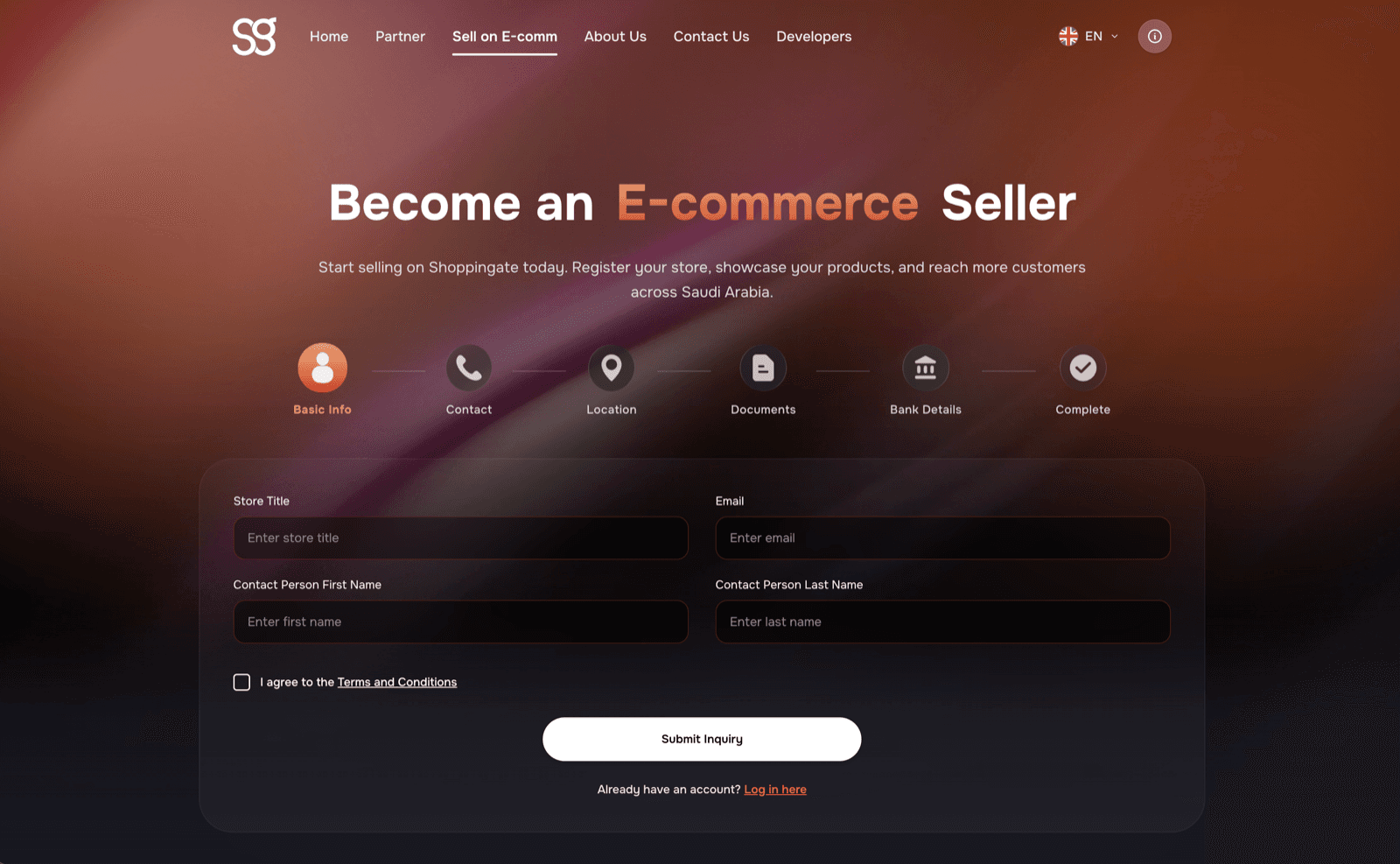
You don't need to be a Shoppingate merchant already. Register here:

  1. Go to shoppinggate.app/grow#register and fill in the form.
  2. The Shoppingate admin creates your account with the email you entered.
  3. You receive an email to set your password.
  4. Log in to the Merchant portal.
The Become an E-commerce Seller registration form

The dashboard

After you log in, the portal opens on the Dashboard. The menu on the left has your store tools — products, warehouses, orders, reports and more — and the Mini-Apps section.
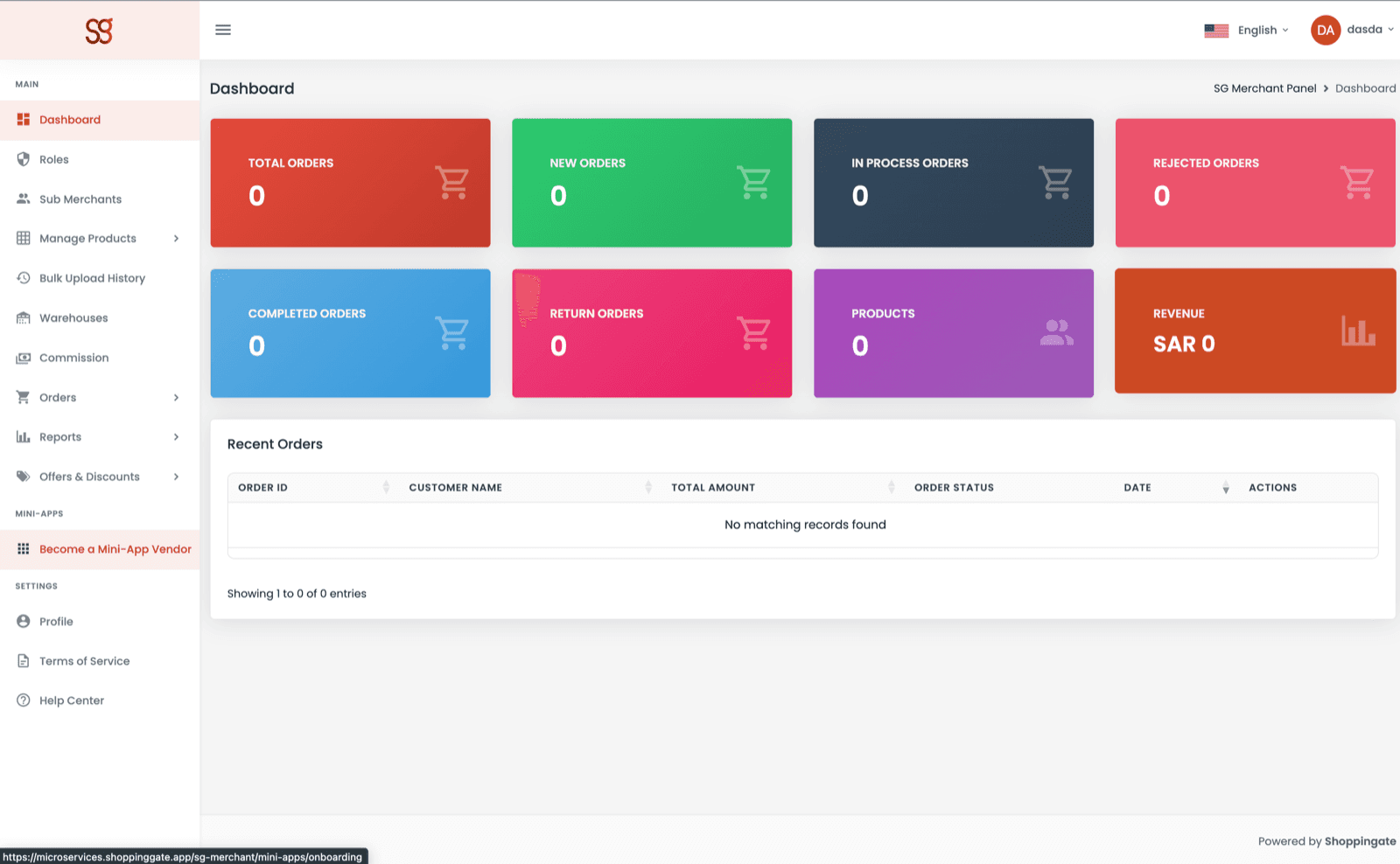
The Merchant portal dashboard with the order counters and the menu

Mini-Apps in the Merchant portal

This is the usual order. Each step has its own page:

  1. 1Become a Mini-App vendorAccept the mini-app provider terms and get the Mini-Apps menu.
  2. 2API keysCreate the key your backend uses to call Shoppingate.
  3. 3My Mini-AppsSee your Mini App's details, where it shows in the app, and its allowed server IPs.
  4. 4OrdersFollow every order placed in your Mini Apps.
  5. 5WebhookGet order events sent to your backend.
  6. 6Deep-link configChoose the screen a notification or the orders list opens in your Mini App.
Merchant portal and Dev portal. You create and publish your Mini App in the Dev portal. The Merchant portal is for running it: keys, orders, webhooks and deep links.