ShoppingateShoppingateDevelopers
shoppinggate.app ↗
Documentation
  • What is a Mini App
  • Why Mini Apps
  • API integration
  • SDK
  • Webview
  • Mini App architecture
  • Getting started
  • Choosing your path
  • Introduction
    • Introduction
    • Sign up & login
    • Dashboard & analytics
    • Mini-Programs
    • Submit & publish a version
    • App Binding
    • Privacy Settings
    • Allowed URL
    • Users & roles
    • Introduction
    • Become a Mini-App vendor
    • API keys
    • My Mini-Apps
    • Orders
    • Webhook
    • Deep-link config
    • Introduction
    • Install & log in
    • Create a project
    • The workspace
    • Preview & upload
  • Introduction
  • Configuration
  • Lifecycle
  • Routing & query
  • Host functions
  • orderPayment
  • Permissions
  • User info
  • Introduction
  • Configuration
  • SDK
  • Lifecycle
  • Routing & query
  • Host functions
  • orderPayment
  • Permissions
  • User info
  • Web app and shell calls
  • Look and feel
  • Overview
    • Verify user
    • Create order
    • Get order
    • Update order status
    • Charge an order
    • Send a notification
  • Subscriptions
    • Create a subscription
    • List subscriptions
    • Get a subscription
    • Update a subscription
    • Reschedule next charge
    • Change plan (upgrade)
    • Cancel a subscription
  • Webhooks
Merchant portal

Webhook

Get a message on your backend every time something happens to an order in your Mini App.

1. Create the webhook

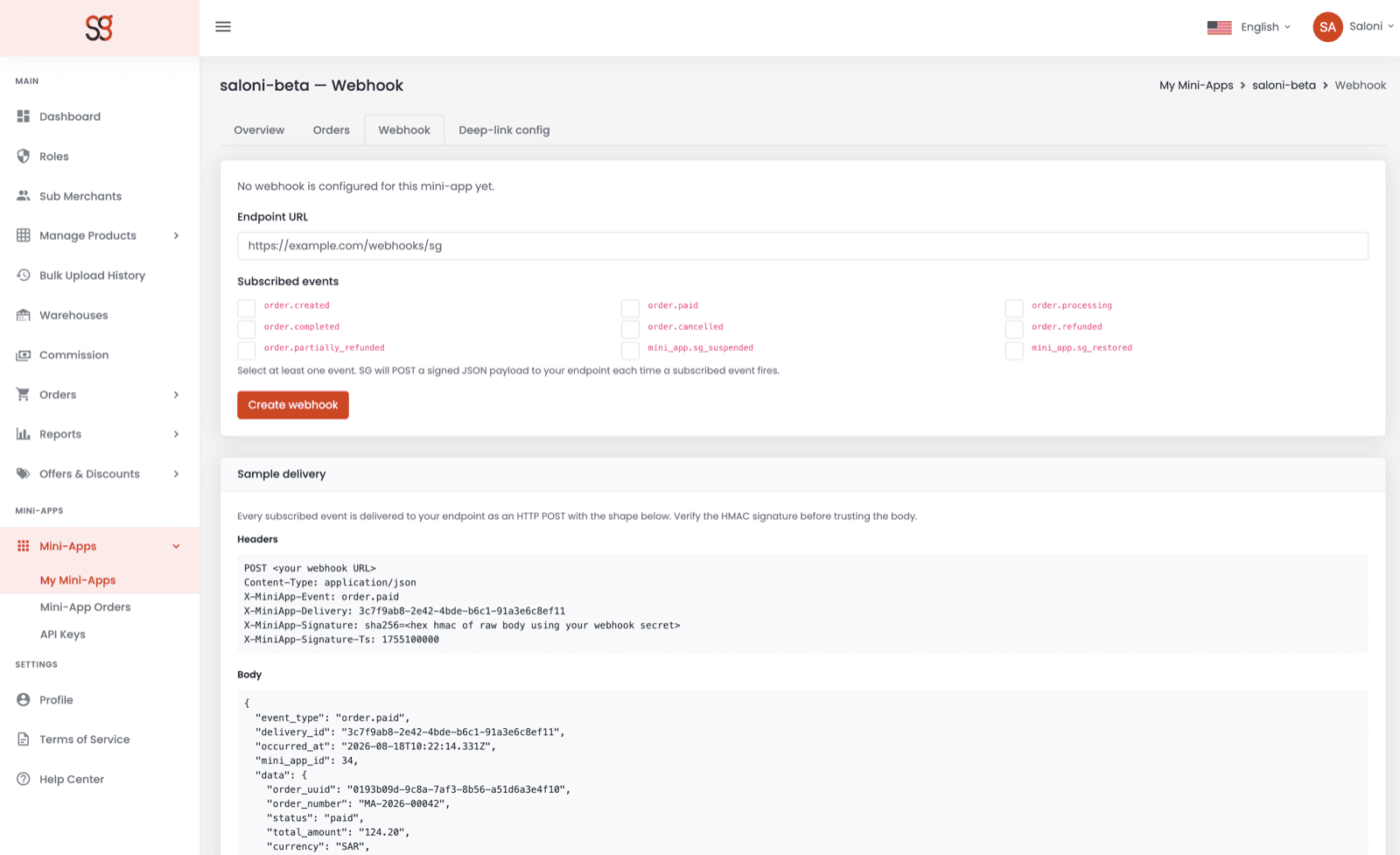
Open My Mini-Apps, select your Mini App, and click the Webhook tab.

  1. In Endpoint URL, enter the address on your backend that receives the events — for example https://example.com/webhooks/sg.
  2. In Subscribed events, tick the events you want. Select at least one.
  3. Click Create webhook.
The Webhook tab with the Endpoint URL, the subscribed events and the sample delivery

The events

  • order.created
  • order.paid
  • order.processing
  • order.completed
  • order.cancelled
  • order.refunded
  • order.partially_refunded
  • mini_app.sg_suspended
  • mini_app.sg_restored

2. Save your webhook secret

After you click Create webhook, the portal shows your webhook secret. Store it on your server — you need it to check that each delivery really comes from Shoppingate.

3. Receive the events

Each time a subscribed event happens, Shoppingate sends an HTTP POST with a signed JSON body to your endpoint. The Sample delivery on the Webhook tab shows the headers and body. Verify the HMAC signature with your webhook secret before you trust the body.

The full payload and how to verify the signature are on Backend integration → Webhooks.