ShoppingateShoppingateDevelopers
shoppinggate.app ↗
Documentation
  • What is a Mini App
  • Why Mini Apps
  • API integration
  • SDK
  • Webview
  • Mini App architecture
  • Getting started
  • Choosing your path
  • Introduction
    • Introduction
    • Sign up & login
    • Dashboard & analytics
    • Mini-Programs
    • Submit & publish a version
    • App Binding
    • Privacy Settings
    • Allowed URL
    • Users & roles
    • Introduction
    • Become a Mini-App vendor
    • API keys
    • My Mini-Apps
    • Orders
    • Webhook
    • Deep-link config
    • Introduction
    • Install & log in
    • Create a project
    • The workspace
    • Preview & upload
  • Introduction
  • Configuration
  • Lifecycle
  • Routing & query
  • Host functions
  • orderPayment
  • Permissions
  • User info
  • Introduction
  • Configuration
  • SDK
  • Lifecycle
  • Routing & query
  • Host functions
  • orderPayment
  • Permissions
  • User info
  • Web app and shell calls
  • Look and feel
  • Overview
    • Verify user
    • Create order
    • Get order
    • Update order status
    • Charge an order
    • Send a notification
  • Subscriptions
    • Create a subscription
    • List subscriptions
    • Get a subscription
    • Update a subscription
    • Reschedule next charge
    • Change plan (upgrade)
    • Cancel a subscription
  • Webhooks
SG Studio

The workspace

Where you write your Mini App's code, compile it, and test it in the simulator.

The workspace has your project files on the left, the code editor in the middle, the simulator on the right, and Devtools at the bottom.
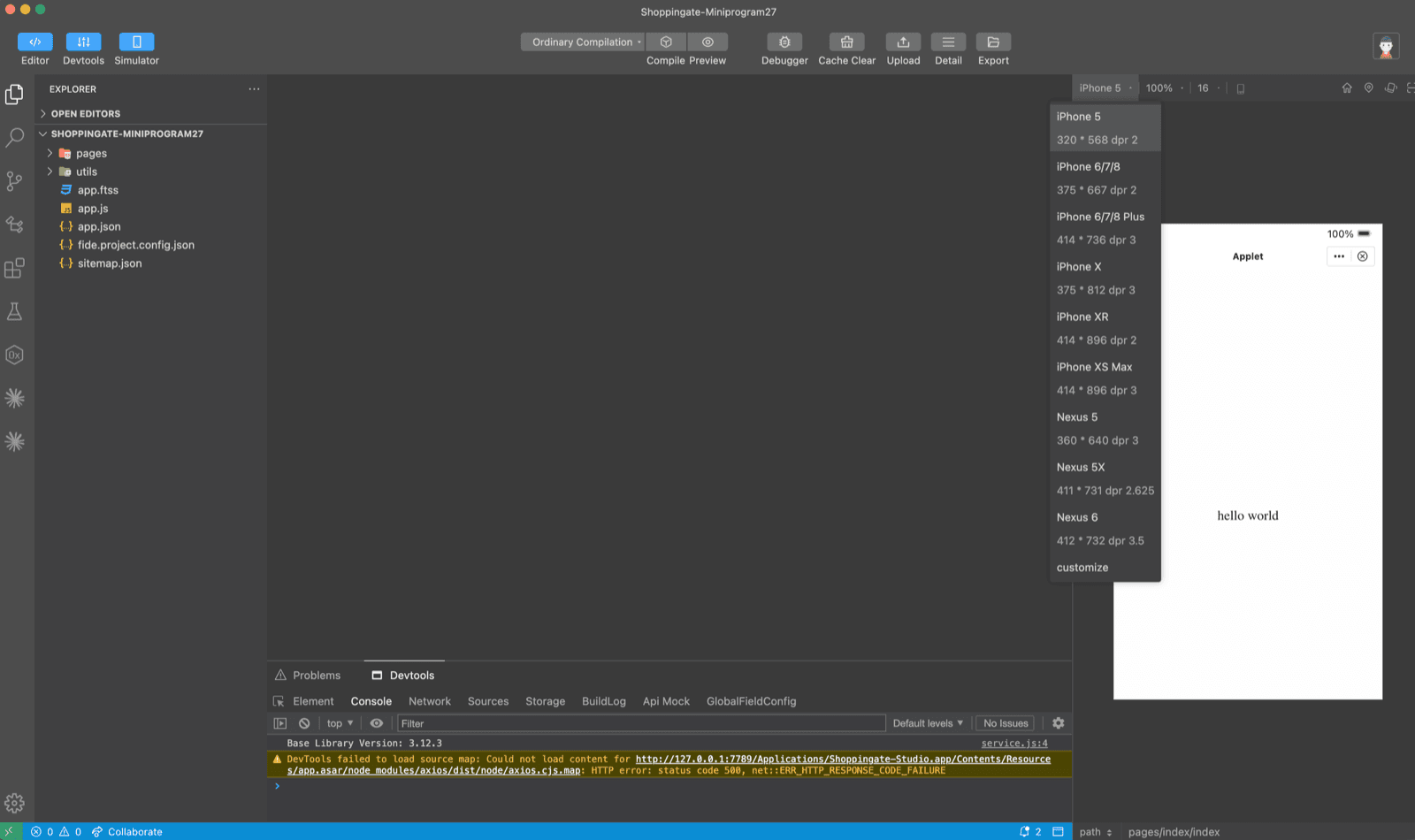
The SG Studio workspace with the file explorer, the Devtools panel and the simulator with its device list open

Show and hide panels

Use Editor, Devtools and Simulator in the top left corner to show or hide each panel.

The simulator

The simulator runs your Mini App as it will look on a phone. Pick a device from the list above it — for example iPhone 5, iPhone X or Nexus 6 — or choose customize to set your own size.

Compile

Click Compile to build your code and reload it in the simulator. Ordinary Compilation opens your Mini App on its home page.

Open a specific page

To test a page directly, open the compilation list next to Compile and click Add Compilation Mode.
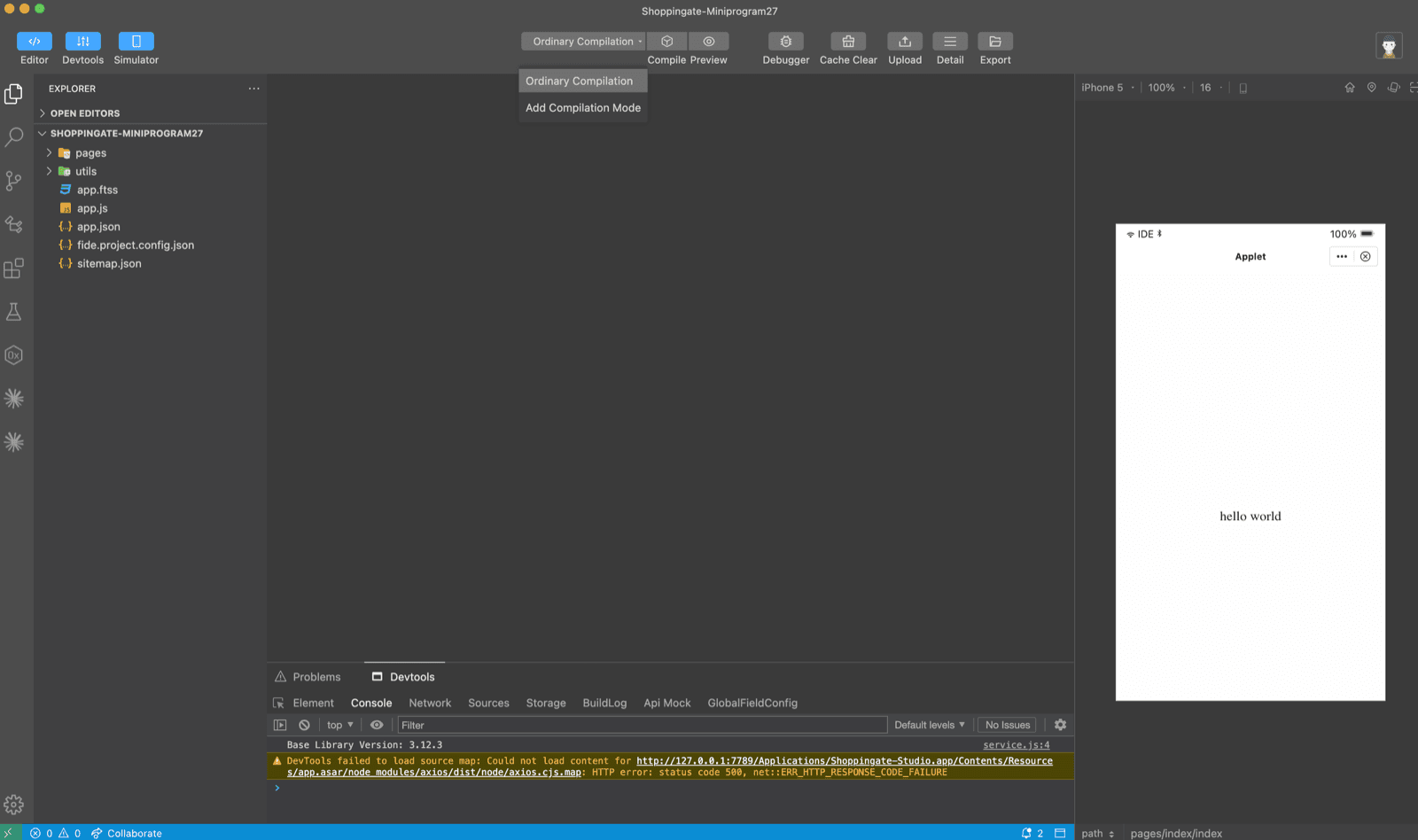
The compilation mode list with Ordinary Compilation and Add Compilation Mode
name
A name for this compilation mode.
page
The page to open, for example pages/index/index.
params
The query parameters the page receives, for example key=value&color=black.

Click Confirm. Your new mode appears in the list, and Compile opens the Mini App on that page with those parameters. How a page reads its parameters is explained in Routing & query.
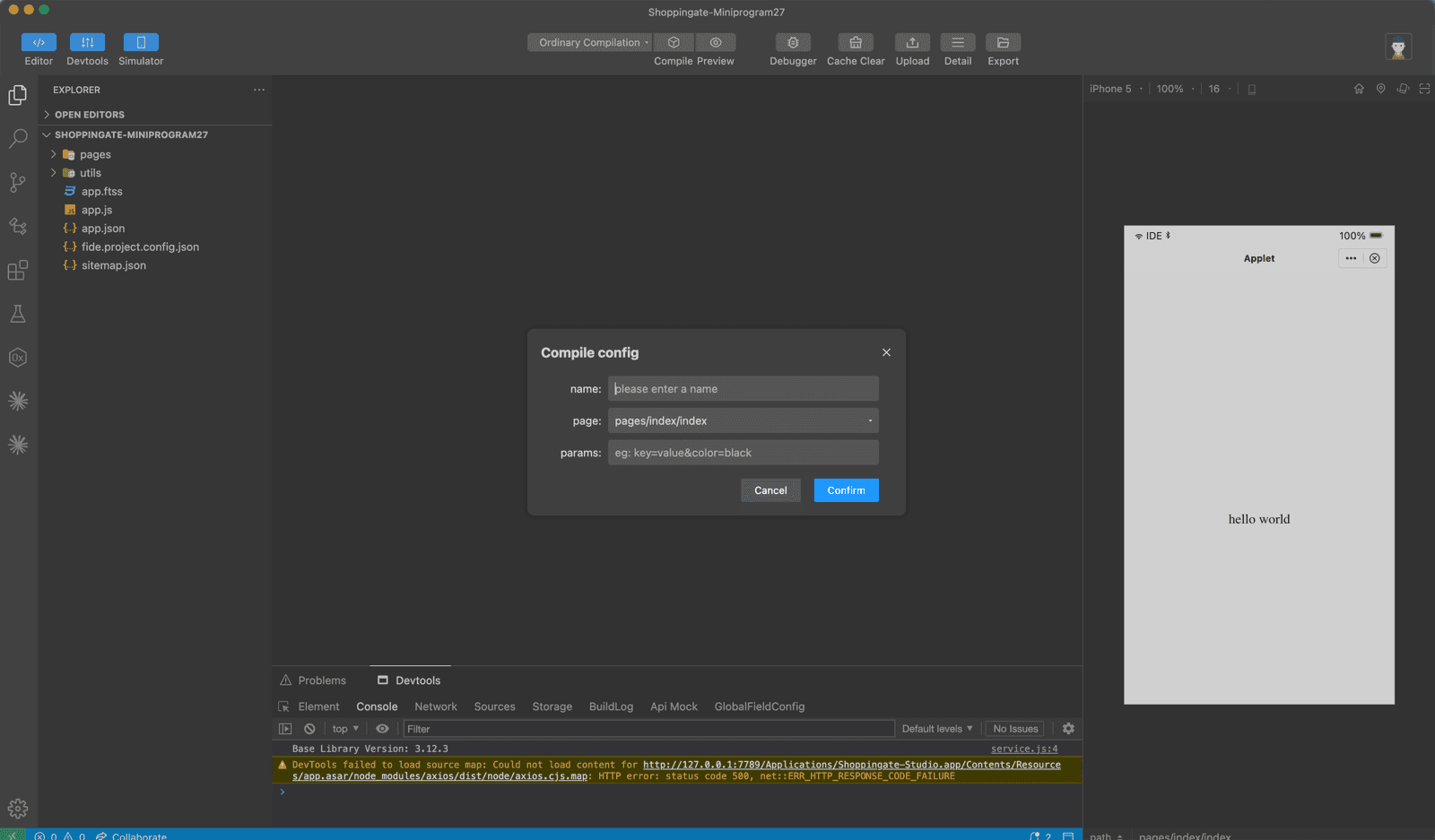
The Compile config dialog with the name, page and params fields

Devtools

The Devtools panel has these tabs:

  • Element
  • Console
  • Network
  • Sources
  • Storage
  • BuildLog
  • Api Mock
  • GlobalFieldConfig
You can ignore this console warning: DevTools failed to load source map… It is safe and does not affect your Mini App.