ShoppingateShoppingateDevelopers
shoppinggate.app ↗
Documentation
  • What is a Mini App
  • Why Mini Apps
  • API integration
  • SDK
  • Webview
  • Mini App architecture
  • Getting started
  • Choosing your path
  • Introduction
    • Introduction
    • Sign up & login
    • Dashboard & analytics
    • Mini-Programs
    • Submit & publish a version
    • App Binding
    • Privacy Settings
    • Allowed URL
    • Users & roles
    • Introduction
    • Become a Mini-App vendor
    • API keys
    • My Mini-Apps
    • Orders
    • Webhook
    • Deep-link config
    • Introduction
    • Install & log in
    • Create a project
    • The workspace
    • Preview & upload
  • Introduction
  • Configuration
  • Lifecycle
  • Routing & query
  • Host functions
  • orderPayment
  • Permissions
  • User info
  • Introduction
  • Configuration
  • SDK
  • Lifecycle
  • Routing & query
  • Host functions
  • orderPayment
  • Permissions
  • User info
  • Web app and shell calls
  • Look and feel
  • Overview
    • Verify user
    • Create order
    • Get order
    • Update order status
    • Charge an order
    • Send a notification
  • Subscriptions
    • Create a subscription
    • List subscriptions
    • Get a subscription
    • Update a subscription
    • Reschedule next charge
    • Change plan (upgrade)
    • Cancel a subscription
  • Webhooks
SG Studio

Preview & upload

Try your Mini App on your phone in the Shoppingate app, then upload a version to the Dev portal.

1. Preview on your phone

Click Preview in the toolbar. SG Studio shows a QR code — scan it with the Shoppingate app to open your Mini App on your phone. The QR code stops working at the Expiration time shown under it.
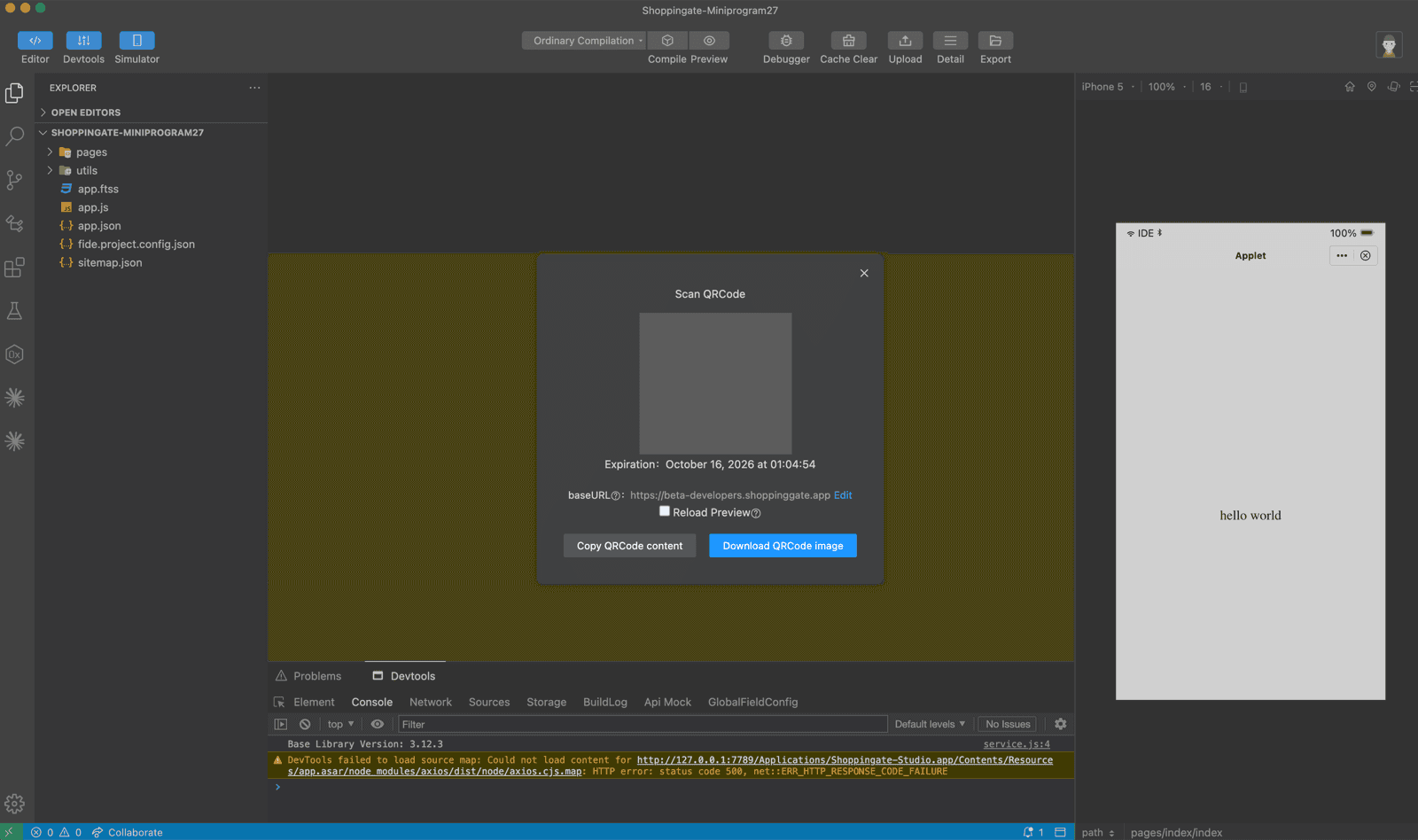
The Scan QRCode dialog with the QR code, its expiration time and the baseURL

Check the baseURL before you scan:

https://beta-developers.shoppinggate.app   // development — with beta
https://developers.shoppinggate.app        // production — without beta

2. Upload a version

Click Upload in the toolbar and fill in Mini-Program Upload:

App ID
The Mini App to upload to.
VersionRequired
In X.Y.Z format, for example 1.0.1. It must be higher than the current version, which is shown in the field.
Description
What changed in this version. It is shown with the version in the Dev portal.
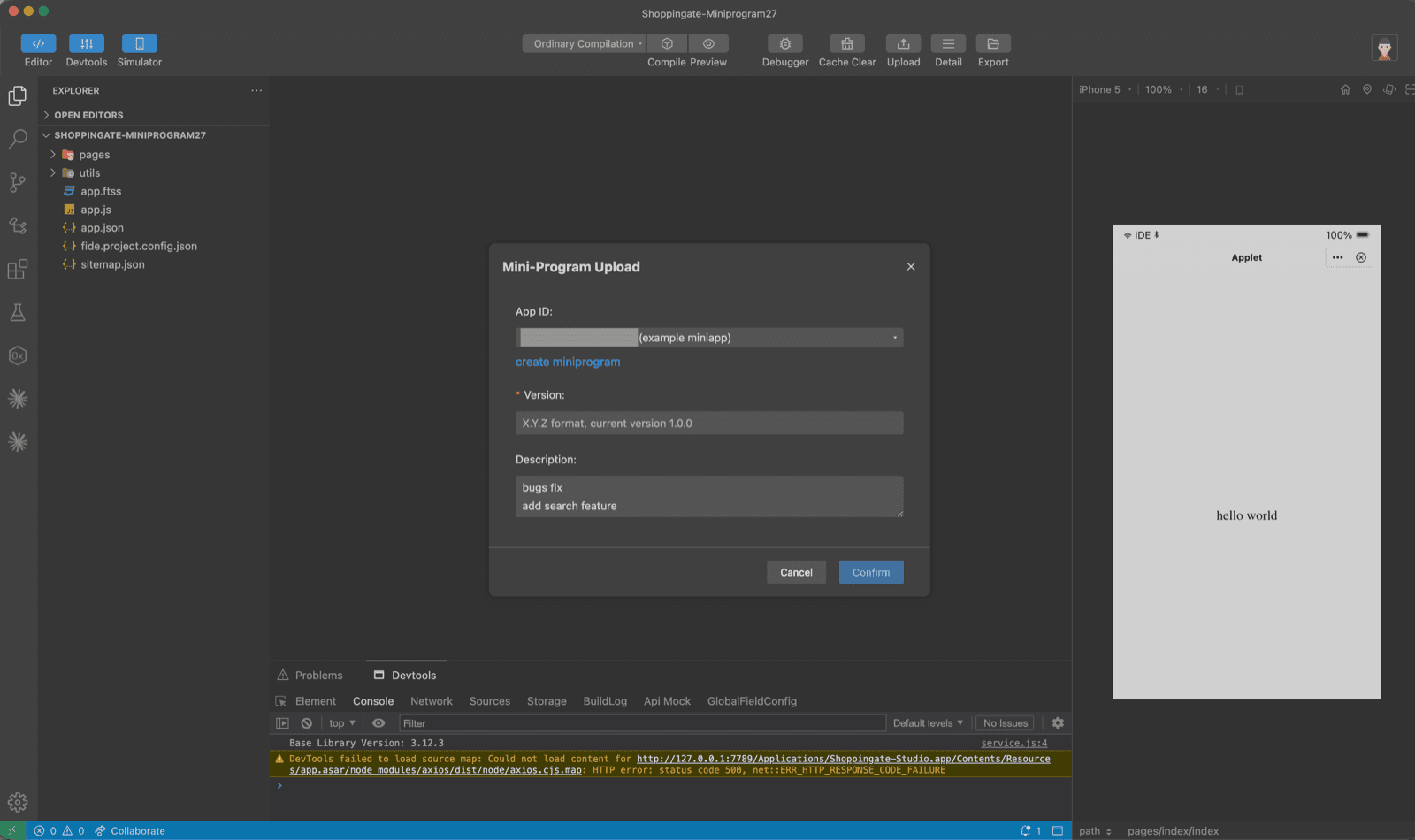
The Mini-Program Upload dialog with the App ID, Version and Description fields

Click Confirm. When you see Upload success, your version is in the Dev portal.
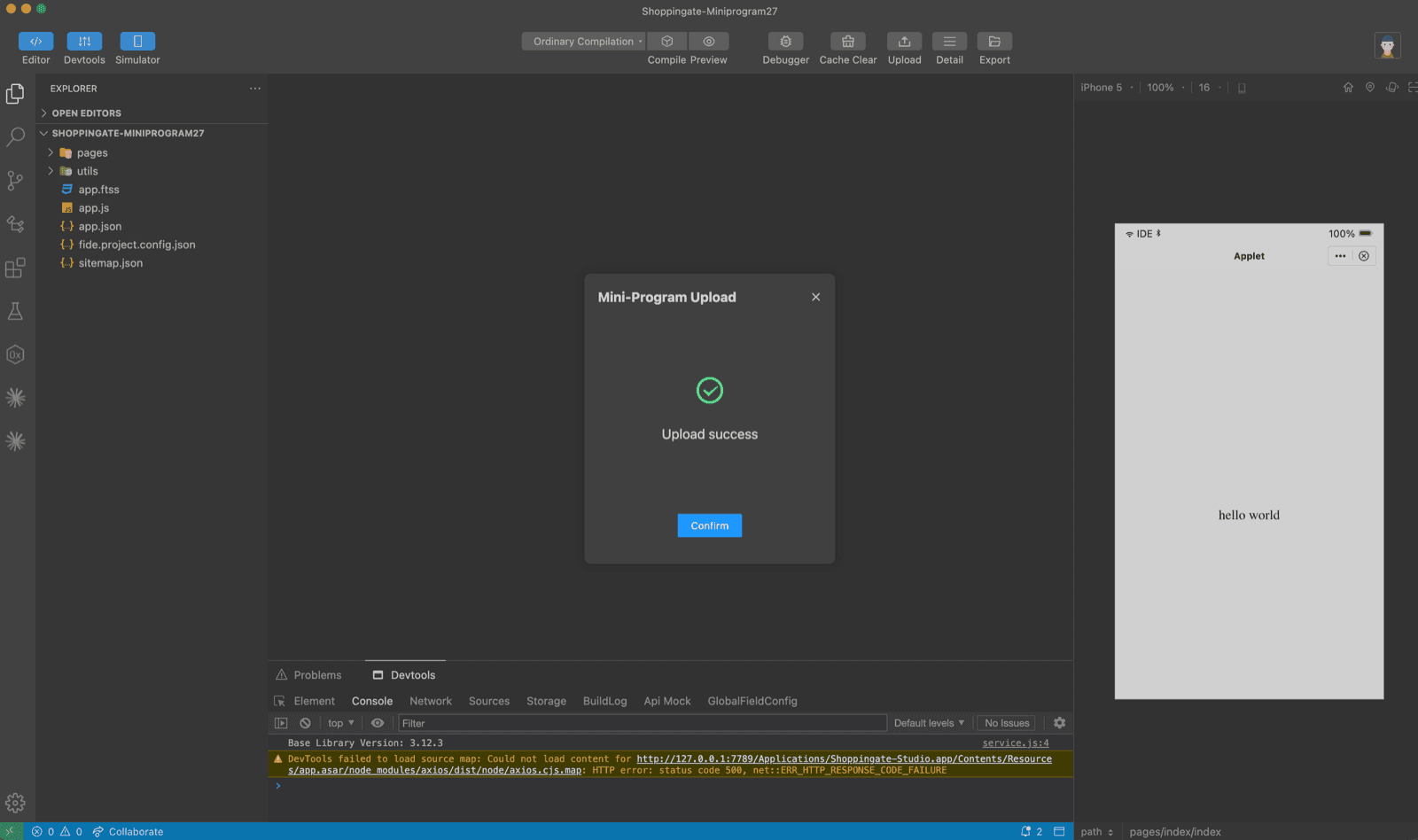
The Upload success message
Next: submit it for review. In the Dev portal, pick this version and send it for review — see Dev portal → Submit & publish a version.